What was at stake
Money added without opening the app must be exactly what the person meant.
Finely is a personal budget app. People can add a transaction without opening it: by asking Siri, from a Shortcut, or automatically after paying with Apple Pay. The app is not on screen at that moment. A guessed amount, or a “done” for a save that failed, would put wrong numbers in someone’s budget without them noticing.
My responsibility — the Siri and Shortcuts actions, and the store they save to. I am Finely’s only engineer. I built the actions, the rules that turn a sentence into a transaction, and the store every transaction goes through.
Two ways in, one store
Siri has phrases for three Finely actions: add a transaction, check the balance, and ask for the next recurring charge. They also appear in Spotlight and the Shortcuts app. A fourth action, “Log an Apple Pay payment”, is made for automations. This article follows the two that add money.

1. Read the sentence, never guess the amount
“Add a transaction in Finely” starts the add action. If a free account already holds its 20 transactions, Finely first asks StoreKit (Apple’s purchase framework) what this Apple ID has bought, because Siri may have started the app before it checked. A Pro subscriber is not turned away just because the app had not looked yet.
Siri then asks: “What should I record? For example “12.50 at the bakery”.” Say the person answers “24 at the bakery”. Finely reads it with fixed rules, not a language model:
- A date such as “yesterday” or “March 3” is taken out first, so its number is never read as the amount.
- The first number left is the amount. “12.50” and “12,50” both work.
- Words such as “salary” or “refund” make it income. Otherwise, it is an expense.
- The rest, without fillers like “at” or “the”, becomes the title: “bakery”.
amount = the Amount field if it is filled in, otherwise the first number in the sentenceif there is no amount, or it is not above zero: make no draft, and ask "How much is it?"The category comes from the person’s own habit (their latest transaction with the same title), then a list of known brands, then keywords: “bakery” is Groceries. When nothing matches, it is “Other”. The account follows the same habit, or is “Checking Account”.
2. Let Shortcuts fields win
In the Shortcuts app, the same action has fields: Transaction (the sentence), Amount, Title, Date, Category, and Account, the same fields as the add form in the app. A filled-in field wins over the sentence.
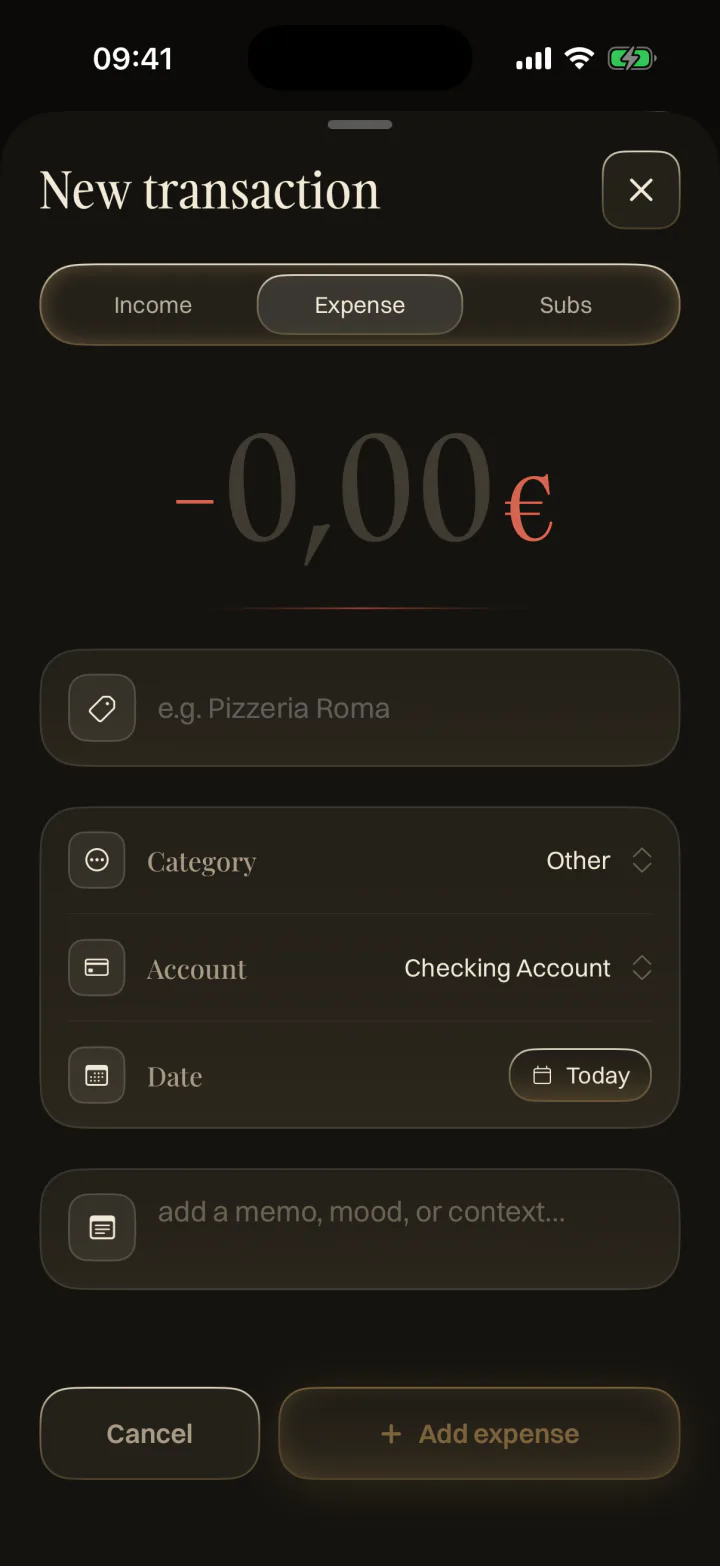
Finely’s add form, in a screenshot from an earlier build.
One exception: Shortcuts lists every category, so someone can pick “Salary” for what reads as an expense. Finely drops a category that goes the wrong way and uses its own suggestion.
3. Read it back before saving
Siri reads the draft back, with its title, category, account, amount, and day, and asks whether to add it. This happens on every run, from Siri or a Shortcut.
Siri’s confirmation has only two answers, with no “Edit” button. So saying no does not throw the draft away. Finely lists every field instead: “Tap a line to change it.”
read the draft back and ask whether to add itif the person says no: repeat: show "✓ Add it — everything is right", then one line per field with its value if the person picks the first line: stop repeating ask again for the field they pickedsave the transactionCancelling the list ends the action, and nothing is saved.
4. Let Apple Pay tracking run without questions
Apple Pay tracking is a Finely Pro feature. In Profile, a short guide gives the person Finely’s ready-made shortcut and shows how to create a Wallet automation set to Run Immediately; iOS does not let an app create one itself. Each in-store contactless payment then hands Finely its amount and merchant.
This action asks nothing: the person chose to log every payment, and a question would stop the automation. So the checks are strict. It needs Pro (“Finely Pro only.”) and an amount above zero (“Payment amount not found.”). It always records an expense on the Apple Pay account, dated now, titled with the merchant, and categorized from it the same way. The merchant name never goes through the sentence reader, so a café called “Bar 12” never becomes a payment of 12.
Siri and Shortcuts pass amounts as floating-point numbers, which hold most cents only approximately. Both actions round the number to two decimals, as text, before turning it into an exact amount.
5. Confirm only what was saved
Both actions save through the same store as the rest of the app, described in The Ledger Behind Finely. If the database (SwiftData) refuses a save, the store undoes it, reloads what is on disk, and answers “not saved”. Both actions read that answer first.
ask the store to save the transactionif the store answers "not saved": say "Couldn't save that one. Try again."otherwise: say what was added: the title, the amount, and the dayWhen things do not go to plan
| What happens | What the person hears or sees |
|---|---|
| The sentence has no amount | ”How much is it?” |
| The free plan is full | ”You’ve used your 20 free transactions…” |
| A Shortcut picks a category that goes the wrong way | Finely suggests one instead |
| The person says no to the read-back | A list of every field, to fix one and save |
| Apple Pay tracking without Pro | ”Finely Pro only.” |
| The save fails | ”Couldn’t save that one. Try again.” |
Trade-offs
- Fixed rules, not a language model. The sentence reader cannot invent an amount, but it understands fewer ways of speaking. Mistakes can be fixed in the list of fields before saving.
- Rules are tested, the conversation is not. Tests cover reading sentences, fields winning, dropped categories, category suggestions, Apple Pay drafts, and Siri’s sentences. The Siri conversation itself and the rounding of amounts have no automated tests.
- Apple Pay tracking trusts the automation. It saves without asking and does not look for duplicates: every run adds one expense.
History
- Rewritten in plain language.
- Published